
Introduction
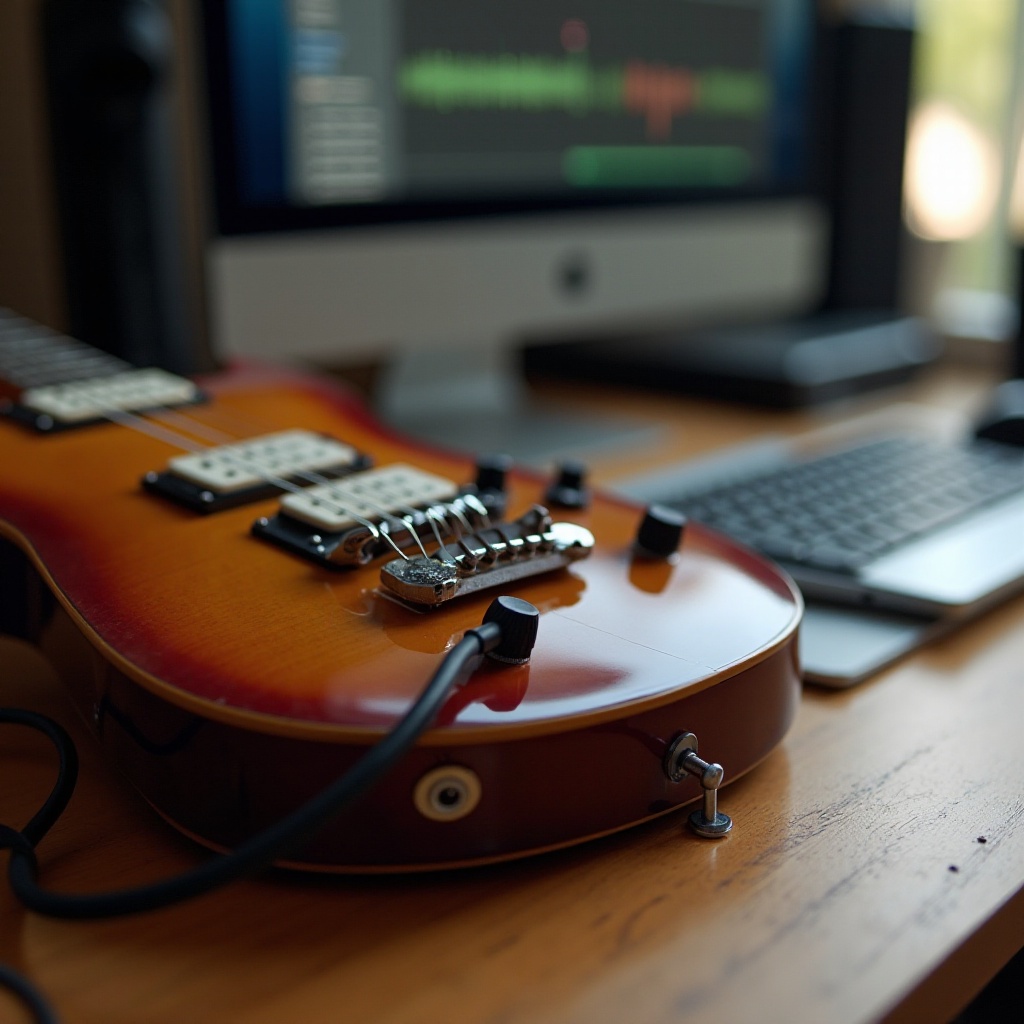
Connecting your guitar to a computer opens up endless possibilities for musicians, from recording to experimenting with digital effects. This skill is essential for anyone looking to expand their creative capabilities. In this guide, we’ll take you through the step-by-step process, so you can achieve high-quality sound directly from your computer. Whether you’re just starting or you’re an experienced musician wanting to refine your setup, this guide will help you.
Understanding the Basics
Before diving into the practical steps, it’s crucial to understand the basics of connecting your guitar to a computer. The core process involves converting your guitar’s analog signals into digital data that your computer can process. This conversion necessitates the use of a Digital Audio Interface (DAI), which plays a pivotal role in ensuring excellent sound quality.
Analog vs. Digital Signals
The distinction between analog and digital signals is vital. Your guitar generates analog signals, which must be converted into digital form so your computer can interpret them.
Importance of Digital Audio Interfaces
Digital Audio Interfaces not only convert these signals but also offer a variety of input and output options. They enhance sound quality and minimize latency, making them a worthy investment for any guitarist looking to improve their recording setup.
Essential Equipment Needed
Now that you understand the basic principles, let’s look at the necessary equipment:
- Digital Audio Interface: Choose a DAI that suits your needs and budget. Options like the Focusrite Scarlett or PreSonus Audiobox are popular choices.
- Guitar Cables: You’ll need a standard 1/4 inch cable to connect your guitar to the DAI.
- Computer and Software Requirements: Ensure your computer has adequate processing power and memory. Install a Digital Audio Workstation (DAW) like GarageBand for Mac or Audacity, which is available for free on multiple platforms.
Equipped with the right tools, you’re now prepared to connect your guitar seamlessly.
Step-by-Step Guide to Connecting Your Guitar
Following this guide will set you up in no time:
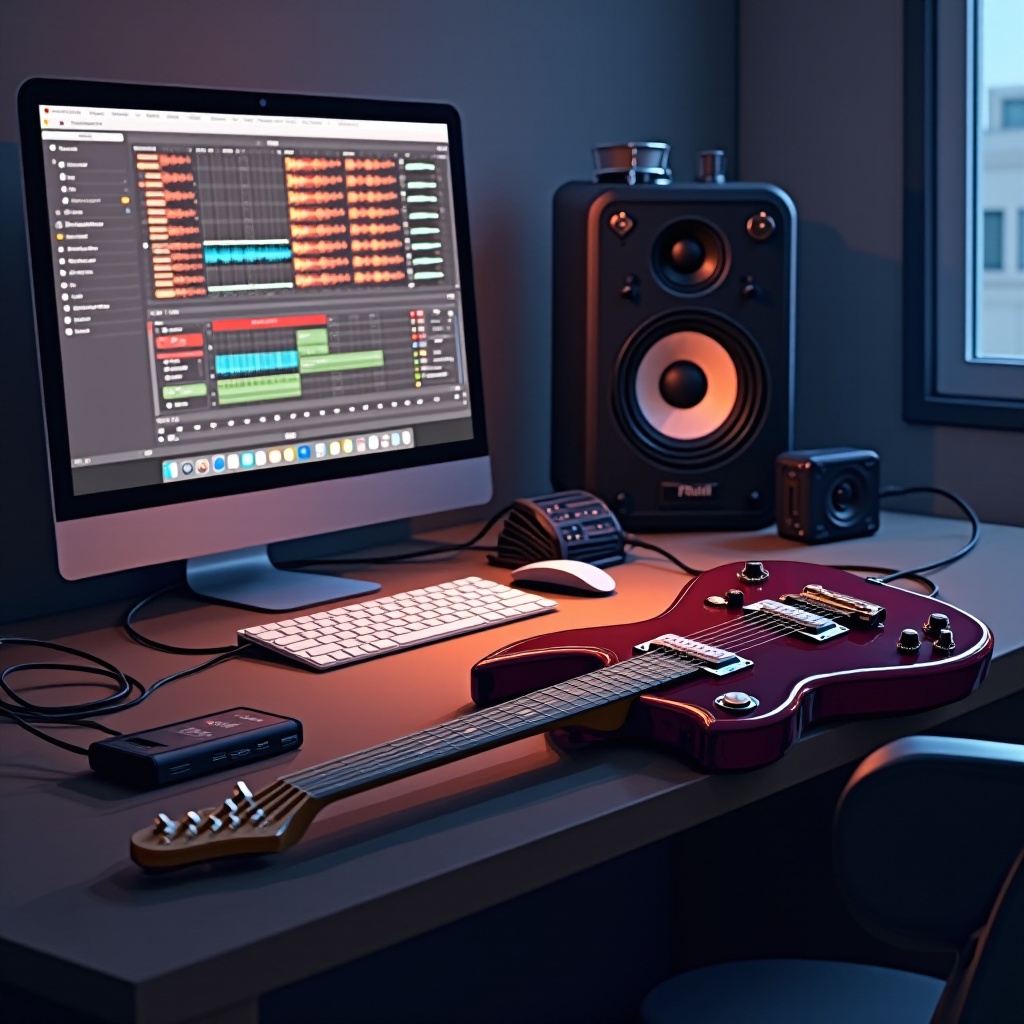
- Setting Up Your Digital Audio Interface: Connect the DAI to your computer using the supplied USB or Thunderbolt cable. Install any required drivers or software that accompany your DAI.
- Connecting Your Guitar: Plug your guitar into the DAI using the guitar cable. Ensure all connections are secure to avoid any sound distortion or interference.
- Configuring Computer’s Sound Settings: Go to your computer’s sound settings and select the DAI as the main sound input and output device. This ensures your computer processes audio through the DAI.
- Selecting and Setting Up Your DAW: Open your DAW and choose the DAI as your audio source. Familiarize yourself with its features to start recording and playing back smoothly.
- Sound Testing and Adjustments: Strum a few chords or pluck some notes while watching the levels on your DAW’s interface. Adjust the input gain on your DAI to achieve optimal sound quality without distortion.
With your guitar connected, you can now explore the extensive software effects your DAW offers.
Choosing the Right Software
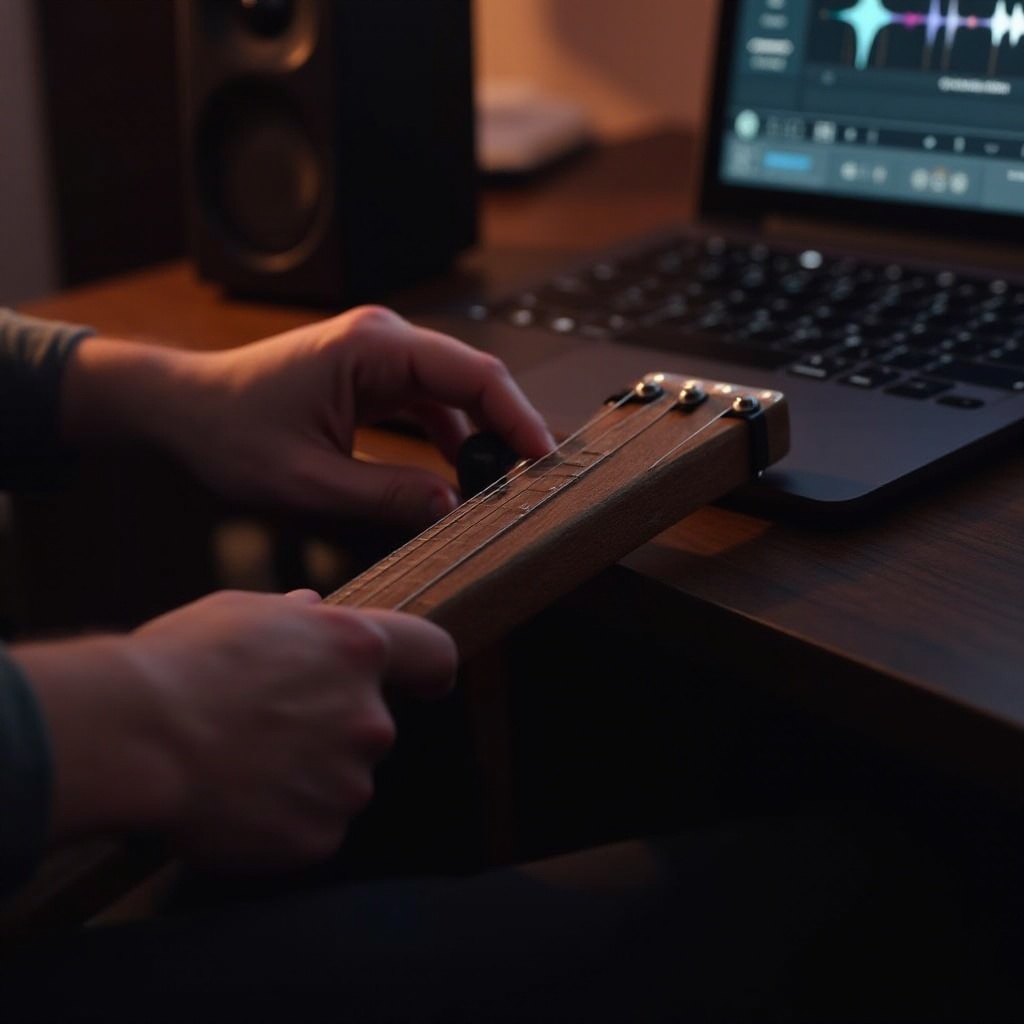
The software you choose can greatly enhance your recording experience. Let’s explore your options:
Free vs. Paid DAWs
Free DAWs like Audacity serve beginners well, offering sufficient tools for recording and editing without cost. Paid versions, such as Ableton Live, provide more advanced features suitable for professional use.
Recommended DAWs for Beginners and Pros
GarageBand is an excellent choice for beginners due to its user-friendly interface. For advanced users, Logic Pro X offers a wide array of features and plugins to broaden creative possibilities.
Plugins and Effects Installation
Explore different plugins to create effects ranging from distortion to reverb. Download and incorporate them through your DAW to enhance your guitar’s sound immensely.
Selecting the right software empowers you to translate your musical ideas into reality efficiently.
Troubleshooting Common Issues
Even with the best setup, you may encounter issues. Here’s how to tackle them:
Addressing Latency Issues
Latencies can be reduced by decreasing the buffer size in your DAW settings. Using an ASIO driver also often helps in minimizing delays.
Fixing Connection Problems
If sound issues occur, ensure all cables are securely connected. Testing with an alternate DAI or guitar cable can also diagnose the problem.
Adjusting Levels and Noise Reduction
Set your computer’s input levels correctly and utilize noise reduction plugins to remove any unwanted background noise.
Addressing these common problems ensures a smooth and pleasant recording experience.
Optimizing Your Setup
After connecting your guitar, optimize your setup for improved performance:
Cable Management Best Practices
Organize cables to avoid tangles, which can cause connectivity problems down the line.
Recommended Settings for Different Genres
Adjust your DAW settings based on your recording genre. Rock might require more distortion, while jazz benefits from cleaner tones and reverb.
Equipment Maintenance Tips
Regular maintenance checks of your gear help prevent unexpected issues during recording sessions.
By managing your setup efficiently, you ensure a seamless and productive recording process.
Conclusion
Plugging your guitar into a computer is no longer a daunting task. With the right equipment and guidance, you unlock expansive possibilities for your musical pursuits. Whether you’re recording your next big hit or experimenting with sounds, this guide prepares you for all your creative endeavors.
Frequently Asked Questions
Can I connect my guitar directly to my computer without an interface?
While it’s possible on some computers with 1/4 inch inputs, using a DAI is recommended for superior sound quality and reduced latency.
What are the best software options for beginner guitarists?
GarageBand for Mac and Audacity for all platforms are excellent beginner-friendly DAWs.
How do I reduce latency when playing through my computer?
Reducing buffer size in your DAW settings and using an efficient DAI with a reliable ASIO driver can minimize latency.